
Users can add a fixed fee amount to a project. This allows you to track how you are progressing in projects where you bill a flat amount for the total project or per period, like when you have a project on retainer.
This feature is available on Premium and Enterprise plans.
Adding a Fixed Fee Rate to a Project
Fixed fee rates can be added to new or existing projects. The Create/Edit project popup has a "Fixed Fee" field where you can enter a $ amount for the project. If a project is set to be recurring, the same fixed fee will be setup every time.

Viewing Fixed Fee in the Project Dashboard
There are a few places where you can track the project's progress against the fixed fee you will charge.
If you open the Project Dashboard, you will see the total fixed fee amount used in the top right corner of the screen. You can also click on Billing Amounts in the first chart and see more information on the progress against this fee. A purple dotted line denotes the fixed fee.
Viewing Fixed Fee in Reports
You can track your fixed fee earnings directly in Reports without leaving the reporting view. Click the 3-dot control at the end of the Summary bar and select Fixed Fee to add it as one of the displayed metrics.
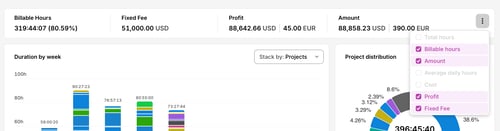
For recurring projects, the fixed fee shown in Reports is automatically multiplied by the number of billing periods that fall within your selected date range. For example, if a project has a monthly fixed fee of $10,000 and you run a report covering 3 months, the Fixed Fee column will show $30,000.
This means the Profit and Profitability columns in the report table also reflect the aggregated amount, giving you an accurate picture of earnings across the full report period.
Note: The Project Dashboard always shows the per-period fixed fee, regardless of the date range. If you notice a difference between the Dashboard and a multi-period report, this is expected — the two views are designed for different purposes. Use Reports to analyze earnings across time; use the Project Dashboard to track progress within a single period.