
Your Toggl Track setup isn’t just about tracking time. It’s about making your reporting meaningful, your workflow intuitive, and your team adoption smooth. Toggl Track offers flexible ways to categorize your time, adapting to your unique workflow.
A clear data structure:
- Gives you confidence in reporting and billing.
- Makes it easier to scale and train others.
This guide outlines how Toggl Track organizes data, and how you can design your own structure intentionally based on how you work.
🧠 Core Concepts
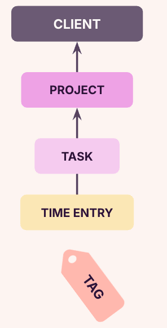
Toggl Track gives you flexible building blocks to structure your team's time tracking:
Clients, Projects, Tasks, Descriptions, and Tags. These data objects, put together, create a Time Entry.
You decide what each of these represents. Your structure should reflect how your organization works and what insights you're trying to extract.
Tasks are available on the Starter plan and above.
What these data objects represent may differ depending on your team structure. For example, an internal IT department may treat Client as a cost center, while an agency might use it for actual customers.
⏱️ Time Entries
A time entry is a unit of time logged in Toggl Track. To put it simply, it is time that has been recorded, and at its core, is made up of time duration. You can view it as a sheet of paper with the details of the work done.
Key Notes:
-
Required: Time Duration
-
Start and Stop Times are required because of the nature of how a time entry is constructed. However, some Workspace settings hide start and stop times for privacy.
-
Optional (but recommended): Description, Client, Project, Task, and Tags.
-
Reporting and billing is made easier with correctly categorized time entries.
👥 Client
Optional grouping label attached to a project, used for organizing projects. Think of Client as the label stuck on a folder, helping you group folders (projects) that belong together.
Key Notes:
-
Although Client is at the top of the hierarchy in terms of how the data is usually structured, it doesn’t mean that it is required.
-
Clients can be associated with multiple Projects.
-
Clients are not directly tied to time entries. Their relationship is via Projects.
📁 Project
Often referred to as the main object of work. Projects help organize time entries depending on how you use it. You can think of it as a folder that holds time entries (and optionally, tasks).
Key Notes:
-
Time Entries must belong to a Project.
-
Projects can only have one Client associated.
-
Where billable rates, estimates, and more settings are set.
🧩 Task (Paid Feature)
Tasks are a very granular data object to further organize time entries. These are optional subdivisions of a project, used to break work into smaller units.
Key Notes:
-
Tasks can only be associated with one Project. One single task cannot be associated with multiple Projects.
-
Available on the Starter Plan and above.
🏷️ Tags
Flat, flexible labels that can be applied to time entries for extra categorization. You can think of these as colored bookmarks on a sheet of paper that help you group similar work together.
Key Notes:
- Optional but powerful when standardized.
- Time Entries can have multiple Tags.
📝 Description
Free-text explanation of what someone worked on while tracking time. Think of it as a headline/summary written on each sheet of paper.
Key notes:
- Best used with standardized phrasing.
- Can be made a required field for time entries.
- Searchable and filterable in Reports.
🗃️ Workspace
The shared environment where time tracking takes place. This is where all your Clients, Projects, Tasks, Tags, and Time Entries live. Think of it as the drawer holding all your folders (Projects), papers (Time Entries), and labels (Clients).
Key Notes:
- Organizations usually share one Workspace.
- Each workspace belongs to an organization.
- Multiple Workspaces are available for Enterprise Plans only.
🏢 Organization
The administrative layer above the workspace. Organizations handle billing, subscription, and account ownership. Think of the Organization as the filing cabinet that holds drawers (Workspaces).
Key Notes:
- Admin-level controls and ownership settings live here.
- Enterprise users can have multiple Workspaces within a single organization.
- Free, Starter, and Premium users can have one Workspace nested within each organization.
⚙️ Data Structure
Let’s walk through a complete example to see how everything fits together.
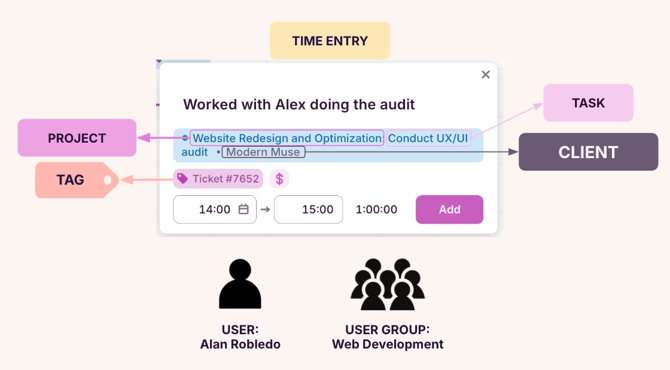
This is how you would visualize your time entry.
💡Key Rules:
- Clients are never linked directly to time entries, only through Projects.
- Tags are flat and not hierarchical.
- Projects can only have one client.
- Time entries must belong to a Project.
📚 Data Categorization and Design
1️⃣ Define what each object means in your context
Toggl Track was designed with flexibility in mind. You get to define what Projects and Clients actually represent within your organization’s workflows.
| Category | Could be used for | Examples |
|---|---|---|
| Client | External client, internal department, district | (1) Acme Inc, (2) Marketing Dept, (3) District A |
| Project | Campaign, deliverable, internal function | (1) Q3 Social Campaign, (2) Onboarding |
| Task | Milestone, phase, sub-service | (1) Wireframes, (2) QA Review, (3) Launch |
| Tag | Billing status, activity type, stakeholder, location | (1) Paid, (2) Support, (3) NYC |
2️⃣ Naming Conventions
Using consistent naming formats or conventions is recommended. Your format should be intentional, consistent, and searchable. Having standardized naming conventions will help with consistent and accurate Reporting.
Naming Convention Ideas for Projects
If you're using the Client field:
The Client-Project relationship will automatically show in your reports, so keep project names focused on the work itself. This approach keeps your project list scannable and lets you leverage Client-level reporting (like total time per client across all projects).
💡 Website Redesign | Q3 Social Campaign | Brand Refresh | Annual Audit
If you're not using the Client field
You can include context directly in the project name to keep related work organized. This approach works well when projects don't need a parent category.
💡 External Work: Acme Inc - Website Redesign | Acme Inc - Brand Refresh
Internal Work: Marketing Dept - Q3 Campaign | Sales Dept - CRM Rollout
Naming Convention Ideas for Tasks
💡 By phase: Discovery | Development | QA | Launch
By work type: Research | Design | Review | Revision
By milestone: Kickoff | Draft | Client Review | Final Delivery
Naming Convention Ideas for Tags
💡 By billing status: Billable | Non-billable | Invoiced | Paid
By work category: Meeting | Research | Execution | Review
By location or team: Remote | On-site | Team A | Team B
3️⃣ Using Descriptions as a Reporting Tool
Descriptions are not just notes, these can also serve as an additional way of categorizing work or time entries. Although useful, the Description field is not required.
Multiple time entries that contain the Account Management description can be grouped together in Reports. You can:
- Require standardized phrases or text for recurring work.
- Keep a close eye on Description patterns weekly or monthly to ensure reporting remains clean and useful.
Example
Standardized Phrasing: Account Management
Descriptions to stir away from: Acct Mgmt, Account Mgmt, Client Account Management, Acct Management, etc.
4️⃣ Start with a Pilot Setup
You can start with a pilot program before rolling out Toggl Track to your whole team. Although it’s not required, before onboarding the team, you can:
- Set up 2-3 clients/projects
- Track time for one week
- Adjust naming or structure as needed
🧱 Data Structure in Action
Before you start building your structure, keep in mind Toggl Track’s core rules on how to bring your data together:
- Projects are required: Every time entry must belong to a Project.
- Everything else is optional: Choose Client, Task, Tag, and Description based on what your organization needs.
- Projects can only have one Client: If you use the Client field, each Project connects to just one.
- Tags are flat, not hierarchical: They work across all time entries.
- Clients are linked through Projects: Time entries don't connect to Clients directly.
These rules ensure your structure remains simple and scalable, regardless of your use case and your team’s complexity.