
Introduction to Workspaces
What is a Workspace?
Everything you do in Toggl Track gets allocated to a workspace: time entries, projects, clients, and tags. Each workspace belongs to an organization. Multiple workspaces per Organization are available for Enterprise pricing only.
A single Toggl Track user can be associated with multiple paid and free organizations and workspaces.
The only section/page in Toggl Track that displays data from multiple organizations/workspaces is the Calendar View area of the Timer page. All other pages will display only the data for the organization/workspace you're currently viewing.
Switching and creating workspaces
Switching between workspaces (and organizations in the process)
You can switch workspaces by clicking the workspace selector in the top-left corner of the app where the name of the currently selected (default) Organization and Workspace is shown.
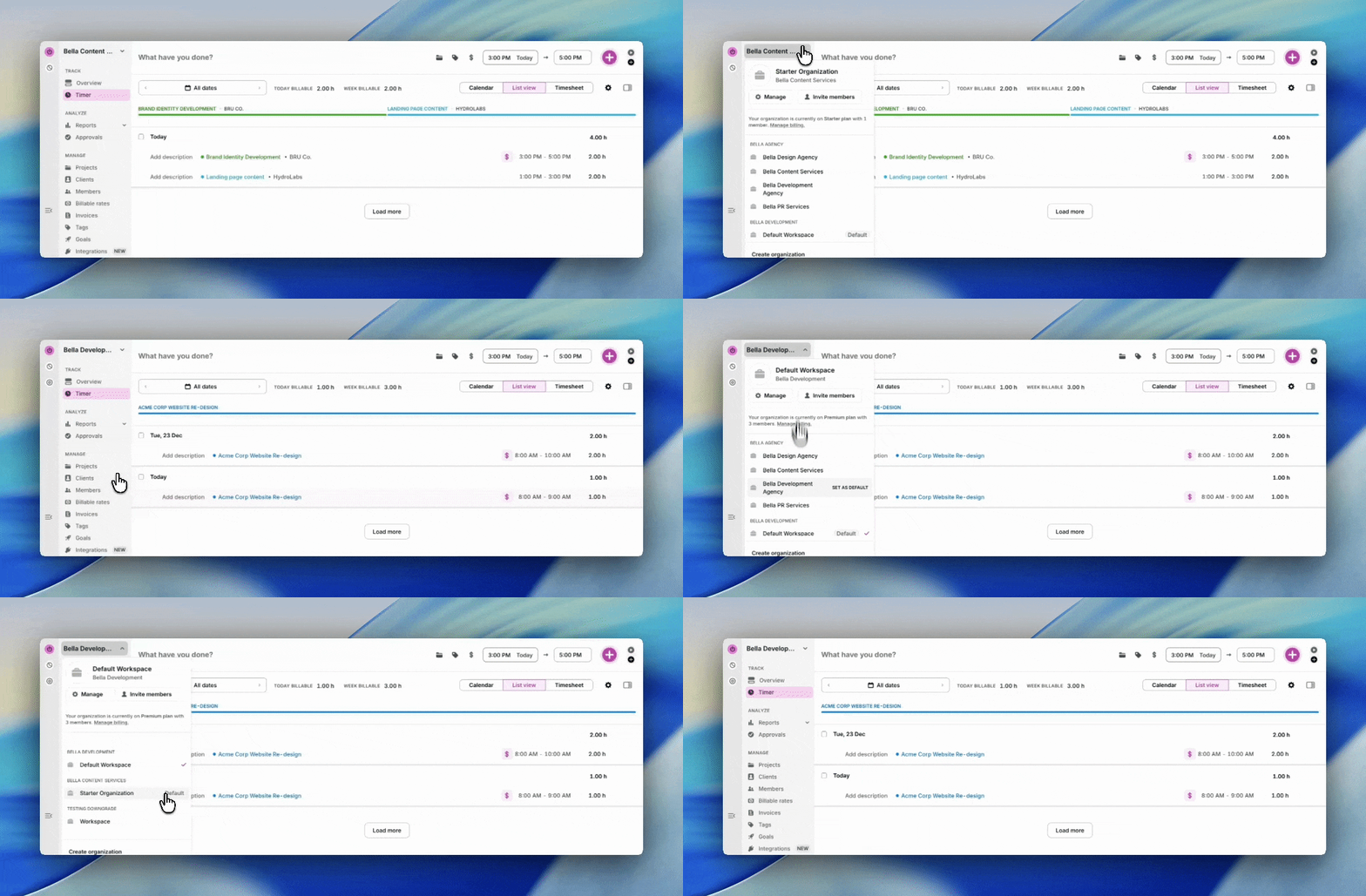
This selector also allows you to:
Go to the Admin console (admins only)
Invite members (Organization admins only)
Set/change your default workspace.
Time entries without a project are automatically assigned to the default workspace. You can select a default workspace by clicking on the DEFAULT button next to any workspace.
Create new organizations
By clicking on "+ New organization" at the bottom.
Managing workspaces
Workspace settings
Access workspace settings via the Settings button.
On the settings page, you will find the following settings
- Change the workspace name
- Upload a workspace logo (paid feature)
- Manage team member rights
- Manage the default billing setup (billable rates required, paid feature)
- Set time entry restrictions (paid feature)
- Settings for Alerts, Reminders, Billable rates, SSO
- Data import and export
How to leave a workspace?
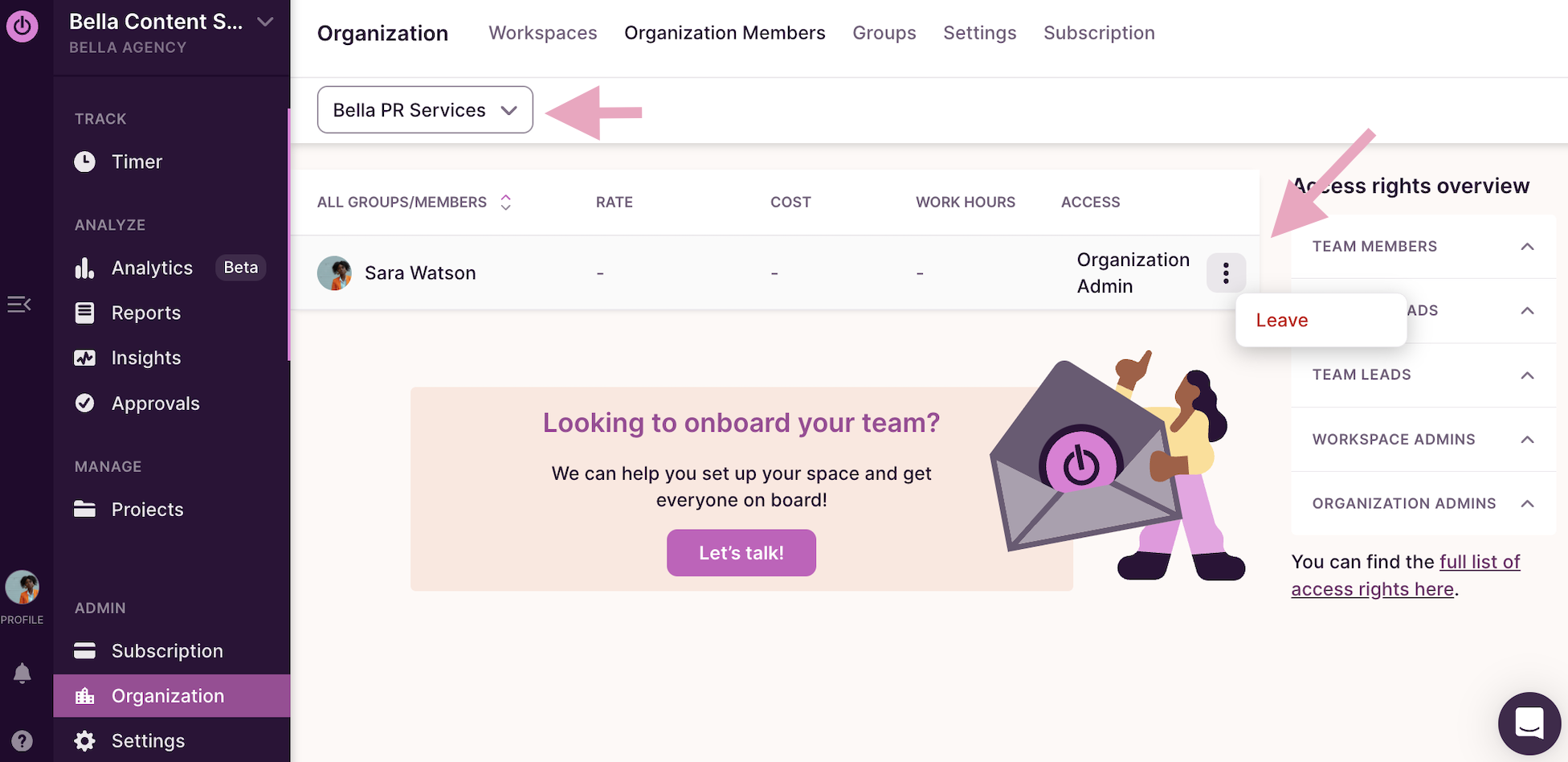
You can leave any workspace from the Organization tab, simply select the corresponding workspace to leave by using the Workspace filter (see the arrow on the left in the image) and by using the 3-dot control at the end of the user row.
Why can't I leave a workspace?
Leaving a workspace is impossible if you are the only admin in a team workspace. To leave the workspace you either need to remove all other users or provide admin access to another user.
Troubleshooting workspace access issues
- "Workspace access not possible" error: This message ("You don't have permission to view the selected workspace") can appear when your access is still being set up. If it persists after waiting, do a hard refresh (Windows: Ctrl + Shift + R, Mac: Cmd + Shift + R) and try again. If the issue continues, contact support and share a screenshot of the error page with the browser Console tab open (right-click the page, select Inspect, then click Console).
- You're viewing the wrong workspace: If your time entries or data appear to be missing, you may be switched to the wrong workspace or organization. Confirm the workspace name shown in the top-left corner and switch to the correct one using the workspace selector.
- Added to a workspace but not receiving the invite or unable to log in: If an admin has added you but you can't receive the invitation email or log in, your email address may be bounced. Contact support to have your email address un-bounced, then ask the admin to re-invite you to the workspace.
- Finding your workspace ID: Open any report (for example the Summary report) and check the URL. In a URL like
track.toggl.com/reports/20083177/summary?h=stirb&wid=20083177, the first number is your organization ID and the number afterwid=is your workspace ID. You can also retrieve it via the API.
Updated on: 07/24/2026
Thank you!