
Open Settings & Preferences from the sidebar or your profile menu. The popup is divided into three sections in the left-hand navigation: Toggl Account, Availability, and Toggl 2.0 Settings.
Toggl Account
Your Toggl Account settings apply across all of your organisations and Toggl tools, not just Toggl Focus.
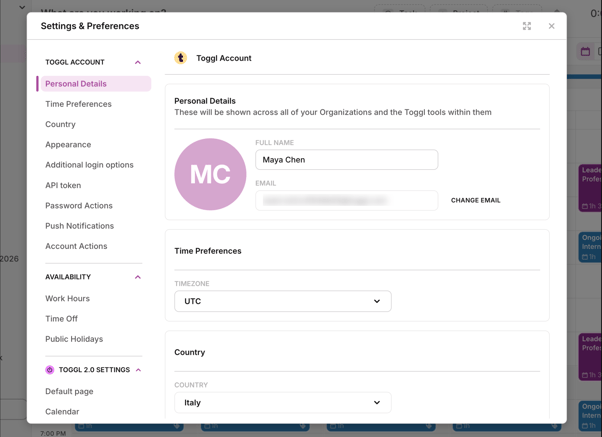
Personal Details
These details are shared across all of your Toggl tools and organisations.
-
Full name: Your display name shown to teammates.
-
Email: Your login email — click Change email to update it. A verification code will be sent to you to confirm the change.
Time Preferences
-
Timezone: Your local timezone.
-
Country: Used for automatic public holiday detection where supported.
Appearance
Specify how Toggl tools will look on your device. The Theme dropdown currently allows:
-
System: Uses your system setting.
-
Light
-
Dark
Additional login options
Enable or disable alternative sign-in methods for your account. Three options are available:
-
Google Sign In
-
Apple Sign In
-
Passkey Sign In.
Each shows as Disabled until you connect it.
API token
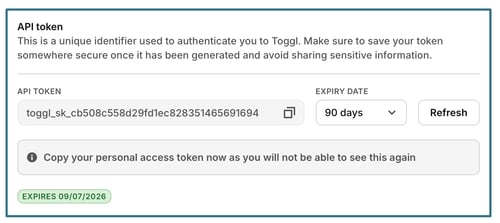
Your API token is a unique identifier used to authenticate you to Toggl via the API. Keep it private — sharing it gives others access to your account data. The token is masked by default, and the Expiry date field shows how long it is valid (e.g. 90 days). Click Generate to create a new token. Generating a new token immediately invalidates the previous one.
Password Actions
-
Two-Factor Authentication adds an extra layer of login security and shows as Disabled until configured.
-
Change Password lets you update your account password.
Account Actions
This section lets you manage your membership across organisations and workspaces. You can:
-
Leave a specific organisation
-
Permanently Close Account.
⚠️ Closing your account is irreversible. Export any data you need before proceeding.
Availability
Availability settings are scoped to a specific organisation (shown in the section heading, e.g. Availability in Organization Bella Development). They communicate to your team when you are and aren't working.
Working hours
Set your regular schedule so the team knows your availability. There are two options:
-
Total weekly hours: Set a total number of hours per week
-
Total daily hours:
-
No schedule: Removes any working time restrictions.
-
Standard 8-hour schedule: Applies a preset 8-hour workday.
-
Custom schedule: Allows you to define your own unique hours for each day. Click + to add a new time block.
-
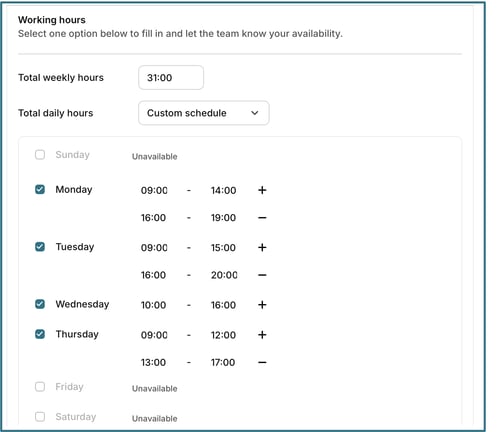
Once set, your non-working hours will appear greyed out on your calendar.
Time Off
Record vacations, leave, and any other time away. Entries are shown to your team on the calendar.
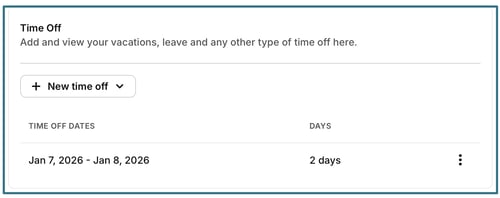
Click New time off to add an entry and select start and end dates.
Existing entries show the date range and number of days.
Click the ⋮ menu next to an entry to delete it.
Public Holidays
Public holidays are automatically detected and shown on your calendar based on your country selection (originally set using your IP). No manual setup is required.
If you change the country you are working from, the public holidays shown on your calendar will automatically update to reflect your new location.
Please Note: Improvements to allow for more customization of public holidays are already planned for a future update.
Focus Settings
These settings control the behaviour of Toggl Focus — your calendar, display preferences, workspace configuration, and team access controls.
Default page
Choose which page Toggl Focus opens to when you launch the app. Your options are:
- Last Opened screen
- My Time
- Tasks
- Board
- Timeline
- Reports
Calendar
Customise how the Toggl Focus calendar behaves. Three options are available:
- Auto-log time when a time block is marked as done — automatically creates a time entry when you mark a calendar time block as done.
- Complete a task if its only time block is marked as done — marks the task as complete when its only time block is marked done.
- Project color as time block background — colors time blocks on the calendar using the associated project's color.
External calendar integrations
Connect external calendars to privately view your events alongside your planned work. Events are visible only to you. Click Add Google Calendar or Add Outlook Calendar and complete the sign-in flow to connect a calendar. Once connected, the account email appears in the list. Click the trash icon to remove a calendar at any time.
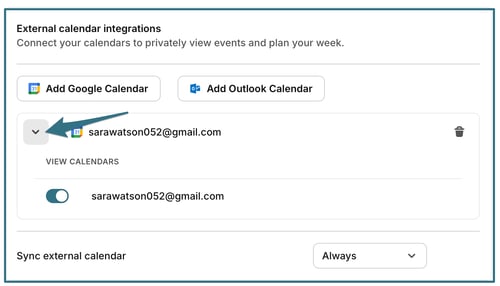
Click the down arrow next to your calendar to view the individual calendars available in this account, and you can choose which ones you want to see in Focus.
Sync external calendar controls how frequently Toggl Focus pulls in updates.
Language
Toggl Focus is multi-lingual. The Display language dropdown controls which language the interface displays in.
Time format
Four settings control how times, dates, and durations are displayed across Toggl Focus:
- Time display format — switch between 12-hour and 24-hour clock.
- Date display format — controls the order of day, month, and year.
- Duration display format — controls how elapsed durations are shown.
- Start week on — sets which day appears first in the weekly calendar view, Sunday or Monday.
Keyboard shortcuts
A single toggle — Enable keyboard shortcuts — turns keyboard shortcuts on or off throughout Toggl Focus. More information on all the shortcuts is available here.
Tags
Tags let you filter and organise tasks and projects across your workspace.
Click + New tag to create a tag.
Click the ⋮ menu next to any tag to edit or delete it.
Tags created here are available to assign to any task or project in the workspace.
Statuses
Statuses let you track where each task is in your workflow. Four statuses are included by default: 🗒️ Todo, 🚧 In Progress, 🚫 Blocked, and ✅ Done.
Click + New status to add a custom status.
Click the ⋮ menu next to any status to edit or delete it.
Required Fields
Make specific fields mandatory when creating or editing tasks, ensuring consistent data across the workspace. Two fields can be made required: Project and Tags. Check the box next to a field to make it required for all task creation and edits.
Data import
Import existing data from Toggl Track or Toggl Plan into Toggl Focus.
Click Import data to begin.
Toggl Plan workspace migration
If you have Toggl Plan workspaces, you can choose whether Toggl Focus or Toggl Plan is the primary planning tool for each one. Each workspace is listed with a Migrated indicator showing whether it has been moved to Toggl Focus. To move a workspace back to Toggl Plan, click Switch back to Toggl Plan next to that workspace. You can switch again at any time.
Workspace billable rate
Set a default billable rate that is automatically applied when new clients, projects, or members are created in the workspace.
Toggle Enable workspace rate to turn this on.
You can, on the popup that opens:
- Set an hourly rate
- Currency
- Which date this applies from.
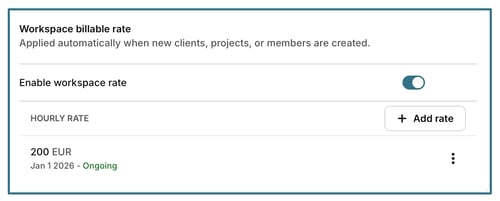
A list of existing rates will be displayed as well, and you can edit or delete them as needed.
Access
Control which workspace roles are permitted to manage specific resources.
Three permissions are available:
-
Allow members to manage clients
-
Allow members to manage tags
-
Allow members to manage statuses
For each, you can choose between:
- Full access: All roles allowed to create, rename, archive and delete
- Edit access: All roles allowed to create and rename
- Restricted access: Only admins and managers can manage
- Custom access: Set custom access
Click the ▶ arrow next to any permission row to expand it and configure which roles are allowed.