
Toggl is a mobile app for iOS and Android designed to help you track time and plan your workday on the go. It syncs with your Toggl web account, so you can seamlessly switch between your phone and the web. With time tracking, task management, and calendar integration, it keeps you focused and organised wherever you are.
→ Download for iOS and Android
The mobile app is a companion to the web app. More complex actions — team timeline views, detailed reporting, and workspace settings — are accessible via the Toggl web app.
Signing up and logging in
On first launch, you'll be prompted to create a new account. If you already have a Toggl account, log in with the same credentials. Use the password reset page if you've forgotten your password.
You can also sign up or log in using Google, Apple, Passkey, or SSO. If an option isn't available to you, check that it's enabled in Profile in the web app.
Understanding the app
The mobile app has four main areas, accessible from the bottom navigation bar:
- Floating controls
- Today
- Tasks
- Calendar
Floating controls
A floating Play button and + button appear on every tab. Tap Play to start a timer, tap + to quickly create a task. These are always accessible regardless of which tab you're on.
When starting a timer, you can now type a new task name directly in the timer input — no need to create the task separately first.
.gif?width=670&height=1378&name=toggl_focus_floating_control%20(1).gif)
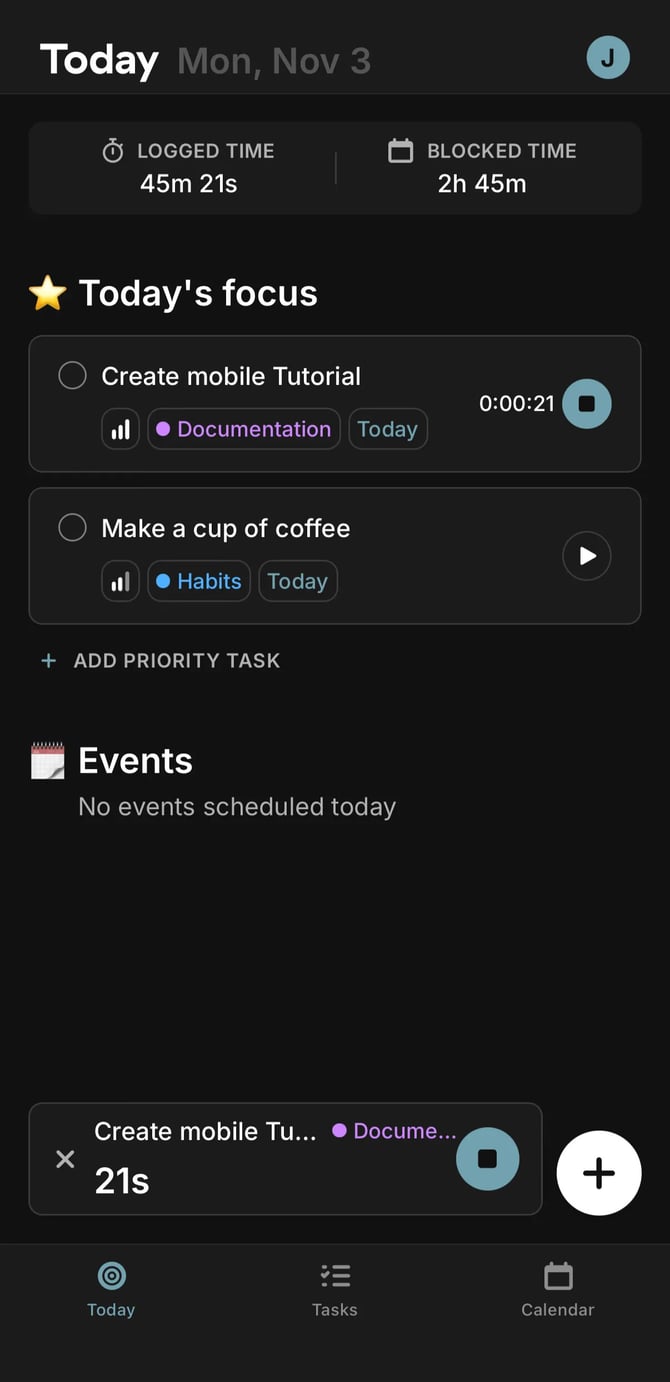
The screenshot below displays a running time log
Today tab
The Today tab has five sections:
- Today’s focus
- Events
- Logged Time
- Blocked Time
- Settings
Today's focus — tasks you've planned for the current day. Add tasks here directly, or star any task from the Tasks tab to pin it to Today. Tap a task to open it, tick the checkbox to mark it done, or swipe left and tap Remove to take it off today's list.
.gif?width=670&height=1372&name=Today_task%20(1).gif)
No longer want to focus on a particular task today? Simply swipe the task to the left and tap Remove.
.gif?width=670&height=1381&name=remove_today_task%20(1).gif)
Want to make changes to a particular task? Simply tap on it and the Task editor will appear.
Events — your connected calendar events. Tap the play button on an event to log time against it, and tick the checkbox when you're done.
%20(2).jpg?width=670&height=1372&name=IMG_2751%20(1)%20(2).jpg)
Logged time — the total time you've tracked today.
Blocked time — the total time you've scheduled today. Use these two together to compare planned vs. actual.
%20(1)%20(1).jpg?width=670&height=1372&name=IMG_2751%20(1)%20(1)%20(1).jpg)
Settings — tap your name initial in the top-right corner of the Today tab to access your account and app preferences.
.png?width=670&height=1457&name=IMG_2741%20(1).png)
Tasks tab
Search — tap the magnifying glass to search by task name.
.gif?width=670&height=1366&name=search_tasks%20(1).gif)
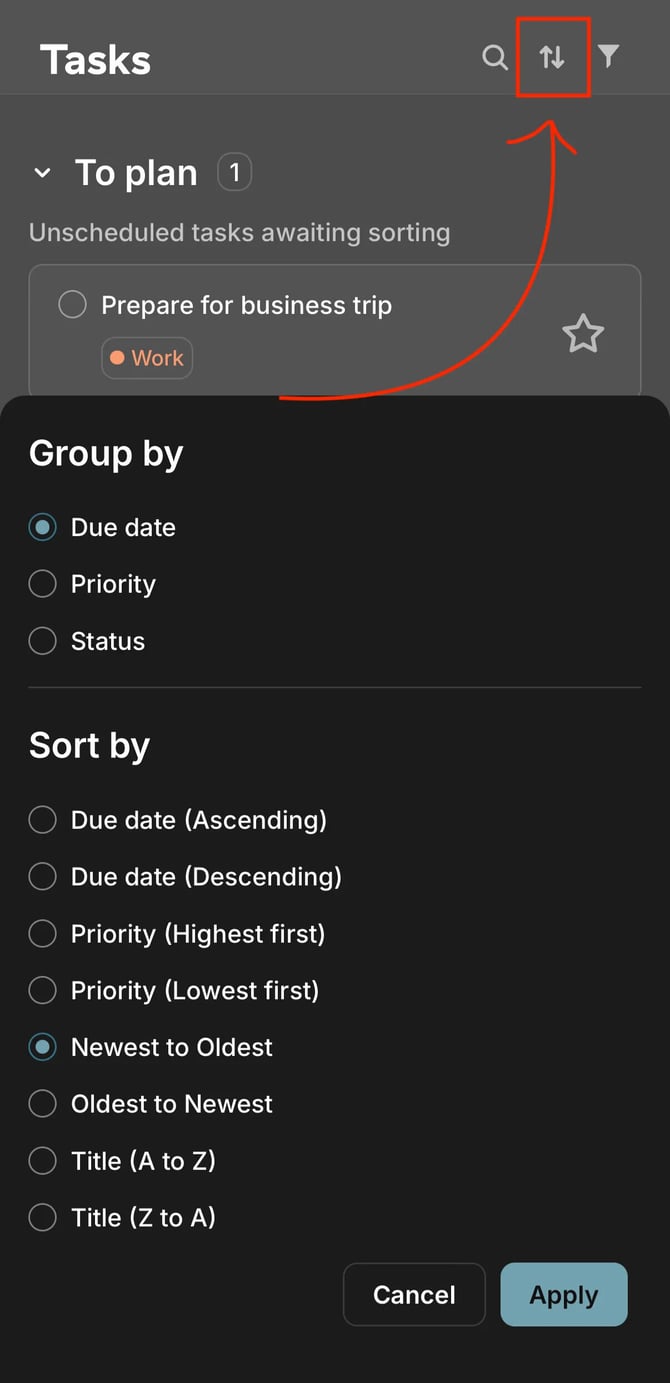
Task Groups — organise tasks by Due date (default), Priority, or Status. The count of tasks in each group is shown.
.jpg?width=670&height=1374&name=IMG_2755%20(1).jpg)
To change the way your tasks are grouped, tap on the Group button.
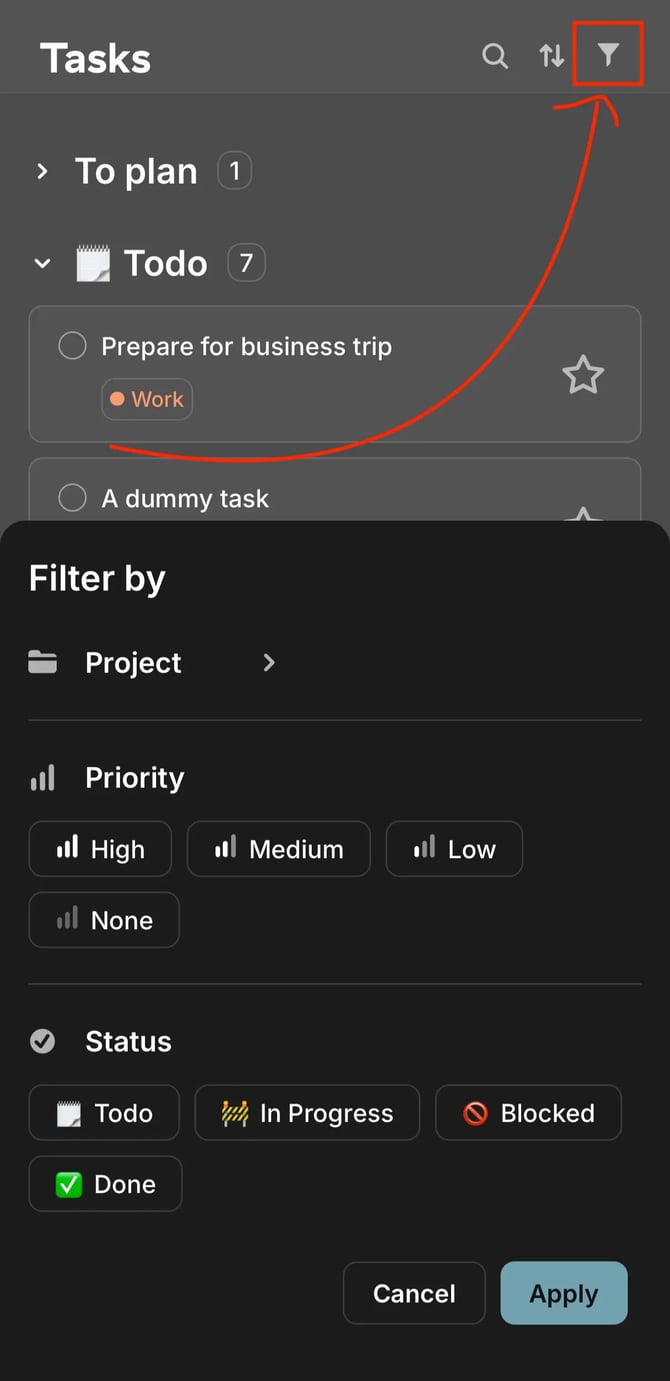
Filter — narrow your view by Project, Priority, or Status.
Calendar tab
The calendar shows logged time entries, calendar events, and blocked time side by side. Logged time appears in the left column; calendar events and blocked time appear in the right.
Calendar events are marked with a "G" or calendar icon depending on your provider.
Tap any entry to open an action menu where you can edit, duplicate, delete, or start logging time against it.
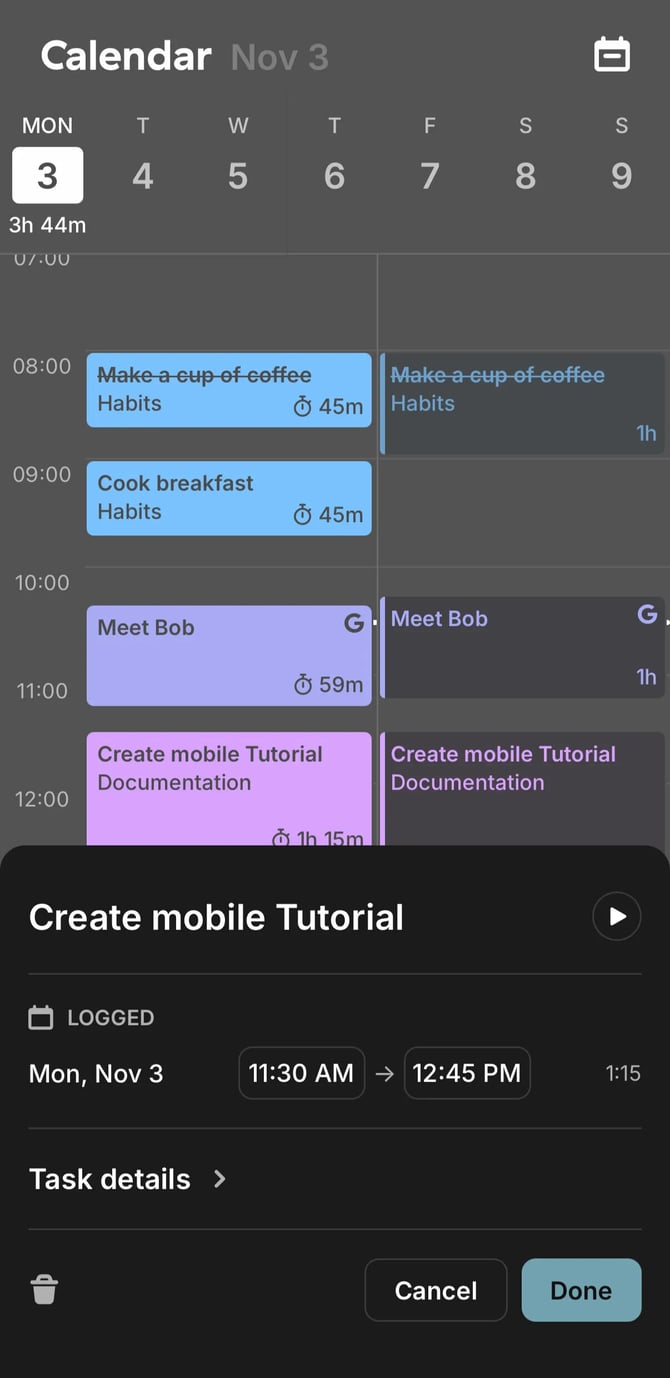
Calendar view options — switch between 1-day and 3-day views, and filter the calendar to show Logged only, Scheduled only, or Both. Tap the view controls at the top of the Calendar tab to change these.
Reports tab
View a summary of your tracked time directly in the mobile app — no need to switch to the web. The Reports tab gives you a basic breakdown of where your time has gone, based on your logged entries.
Time log management
Duplicate a time log — tap any existing time log entry and select Duplicate to create a copy with the same task and project details. Useful for recurring work like daily standups or regular client sessions where you'd otherwise retype the same information.
What's available on web only
The mobile app covers everyday tracking and task management. The following are currently web-only:
- Team timeline views
- Detailed reports and export
- Full workspace and billing settings
- Project and task creation in bulk