
Our browser extension for Chrome and other chromium browsers lets you track time in your favourite web tools and wherever you are on the web.
Installing the extension
- Open the extension in the Chrome Web Store
- Click Add to Chrome
- Click the Toggl icon next to your address bar and log in with your Toggl account
Note: Microsoft Edge (as well as other Chromium-based browsers) have support for Chromium extensions, so you can use the Toggl browser extension on those browsers by downloading it from the Chrome Store.
Toggl extension icon
Once you install the add-on, a Toggl icon will be added to the right of the address bar.
Dropdown timer
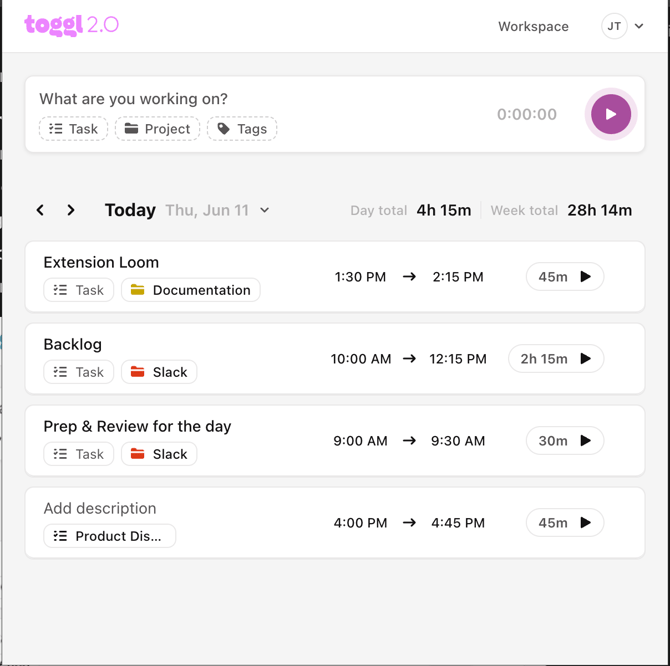
Click on the Toggl browser extension to reveal the timer's dropdown. Here you can:
- Create a new time log in timer mode
- See total time tracked for the day and week
- See existing time entries for the past few days, and edit or delete them by clicking on them
- Click on the Toggl icon on the top left to visit our WebApp
- Change your Workspace
- Go to your Settings & Integrations by clicking on your initials
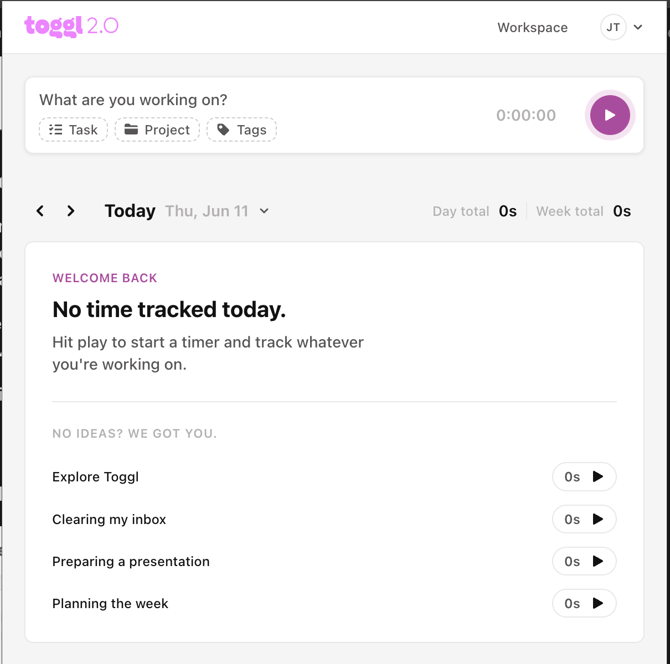
Suggested entries
When you open the extension, you'll see a set of suggested time entries. For newer accounts, these are proposed entries to help you get started quickly. They are not saved until you actively start and stop a timer.
Once you have enough tracked history, these proposals are replaced by recently tracked items — entries you've logged before that you can quickly reuse without typing anything.
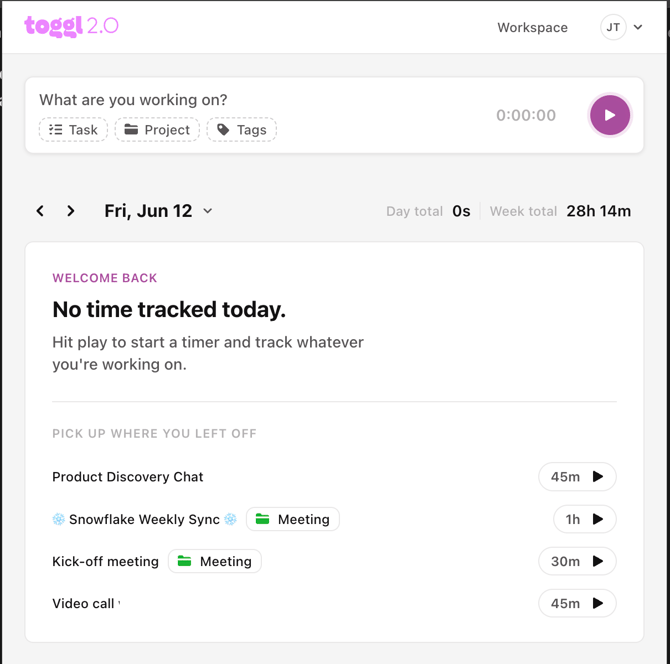
- We look at everything you tracked in the last 7 days.
- We pull out your 4 most recent tasks. If you worked on the same task several times, it only shows up once (with the latest version), so the list stays clean.
- We only include real, finished tasks, nothing still running, and nothing that wasn't tied to a task (so there are no blank rows).
All time entry fields available in the web app (task, project, tags) are supported in the extension as well.
Integrations
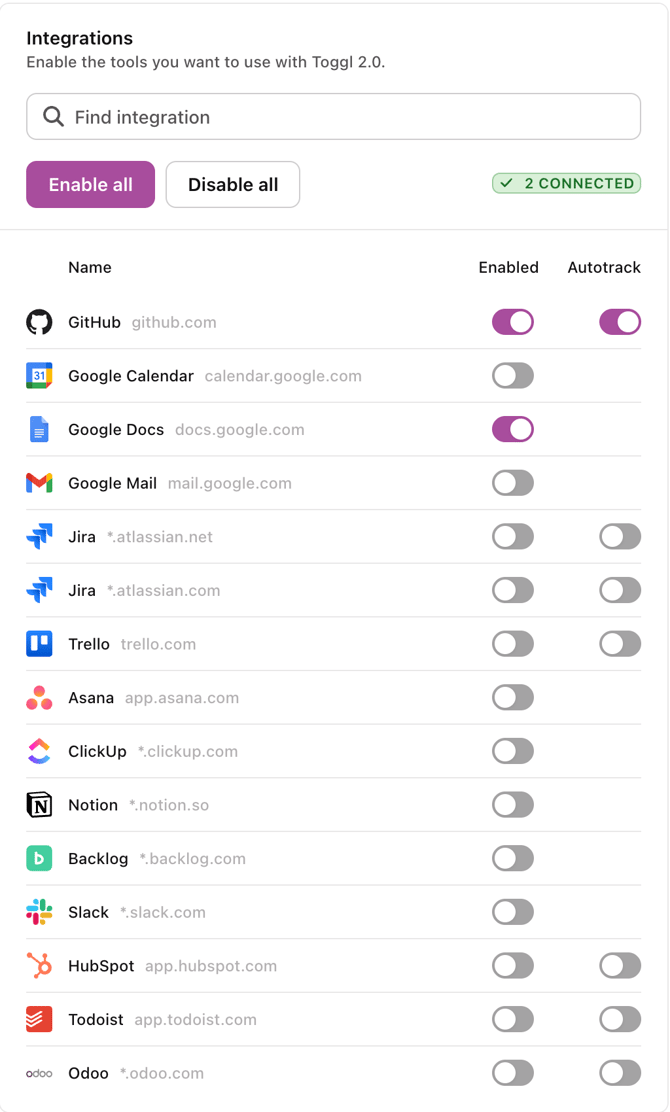
The extension has a built-in integrations panel that surfaces your available native integrations directly inside the dropdown. A curated list of popular integrations is shown by default (e.g. GitHub, Google Calendar, Notion).
- Enable an integration by toggling it on directly from the panel
- See all integrations by pressing "See all" — this shows every available native integration
- Hide the panel if you don't need it — you can bring it back at any time
You can also enable or disable all integrations with one click from the Integrations settings.
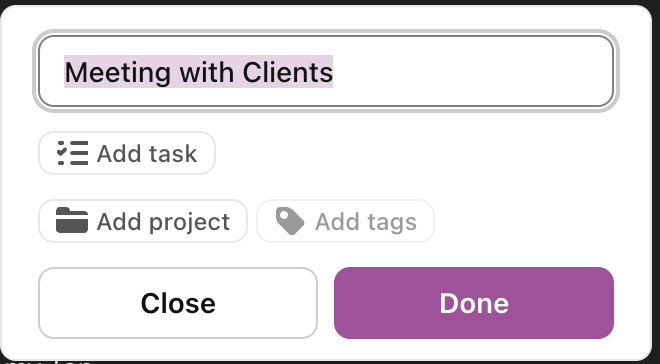
When tracking time by clicking the Toggl button in another app, the extension will match the item name as a suggestion, which you can confirm. For example, if you have a calendar event called "Meeting with Clients" and press the play button, the extension will automatically populate your Time Log with that name. Press "Done" to confirm and start tracking.
.png?width=447&height=124&name=Screenshot%202025-12-15%20at%2011.15.07%20PM%20(1).png)
Currently supported integrations:
- GitHub
- Trello
- Gmail
- Google Docs
- Google Calendar
- Asana
- Jira — see below
- ClickUp
- Notion
- Backlog
- Slack
- HubSpot
- Todoist
- Odoo
Jira integration (available on the Premium plan)
The Jira integration connects Toggl directly to your Jira workspace, and the browser extension adds a timer button inside every Jira task — so your team can log time without switching tabs or manually recreating project structure.
What the integration does:
- Syncs your Jira projects, issues, labels, and assignees into Toggl automatically
- Shows a preview of what will sync before the first import
- Displays a success log of what came through
- Reflects subsequent Jira changes in Toggl automatically
- Maps assignees via email — missing users can be invited with one click
What the browser extension adds for Jira:
- Autofills the task title, project, and tags when you start a timer from inside a Jira task
- Supports manual time logging (not just the play button) — log time directly from the Jira issue without starting a live timer
- Quick-log presets: 15 min, 30 min, 1h, 2h
- Drag the play button to log a custom duration
To connect Jira, go to Settings > Integrations in the web app and select Jira.
Note: Bi-directional sync, custom JQL filters, and custom field mapping are not included in the current version.
Contextual tracking prompts
When you navigate to a site with an enabled native integration, the extension surfaces a Track time button directly on the page — no need to open the extension manually. Press it, select what you want to track, press "Done", and the timer starts.
Auto-track
For select integrations, you can enable auto-track. When active, the extension automatically starts a timer as soon as you visit a supported site. The timer stops automatically when you close the tab.
To enable auto-track:
- Open the integrations panel in the extension
- Find the integration you want to enable it for
- Toggle auto-track on
Auto-track is currently available for a limited set of integrations. Support for additional integrations will be added over time.
Integration discovery prompts
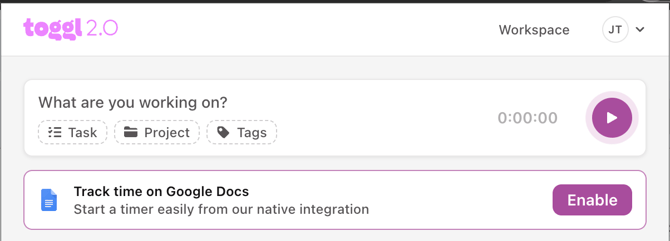
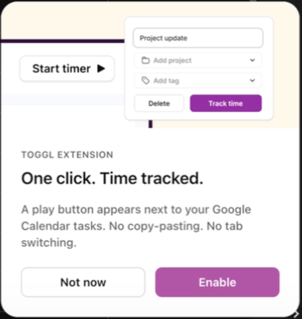
From time to time, when you visit a site that has a compatible native integration available but not yet enabled, the extension will show a small prompt asking if you'd like to enable it. Press Enable to turn it on, or Not now to dismiss it. This prompt appears a limited number of times per integration to avoid being intrusive.
General
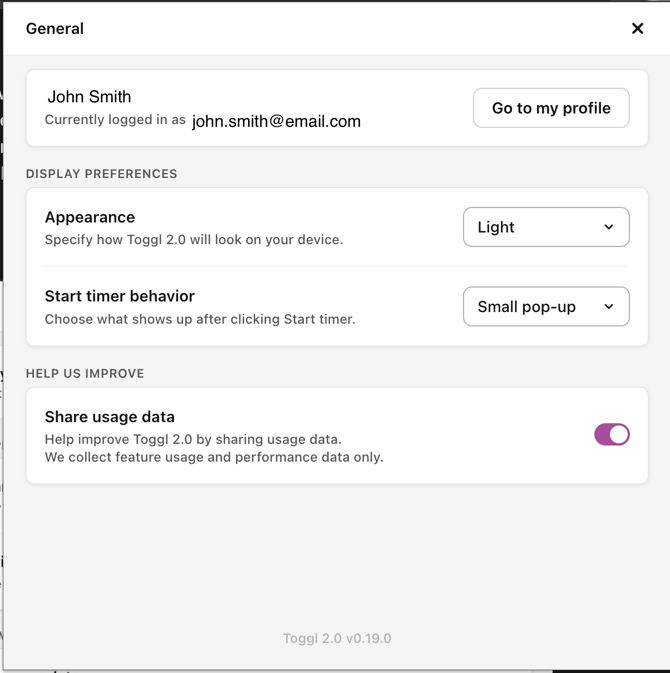
The General tab has a number of basic settings.
Profile Settings
- Access your profile quickly. Here you can select your timezone preferences, country and other profile information.
Appearance
- Select how the Toggl extension will appear on your device. Choose between Dark and Light modes.
Start time behaviour
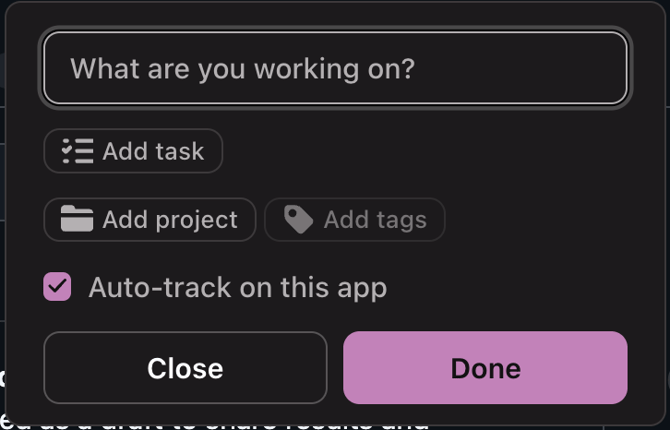
For your integrations, select how the dialogue should appear for you. Choose between Full screen, a small pop-up, or none at all.
Real-time sync
The extension stays in sync with the web app in real time. Changes made in the web app — new tasks, updated entries, workspace changes — are reflected in the extension without needing a manual refresh.