
Two-factor authentication adds a second verification step each time you sign in with a password. Once enabled, you'll be asked for a time-based code from your authenticator app or password manager after entering your credentials. Note that 2FA only applies to password-based logins — accounts using Google sign-on, Apple sign-on, Single Sign-On (SSO), or Passkeys will not be prompted for a code.
Enabling 2FA
- Go to Settings & Preferences.
- Under the Password actions section, toggle on two-factor authentication.
- A QR code will appear. Open your authenticator app and scan it — or, if you're using a password manager, copy the displayed key directly into its TOTP/2FA section.
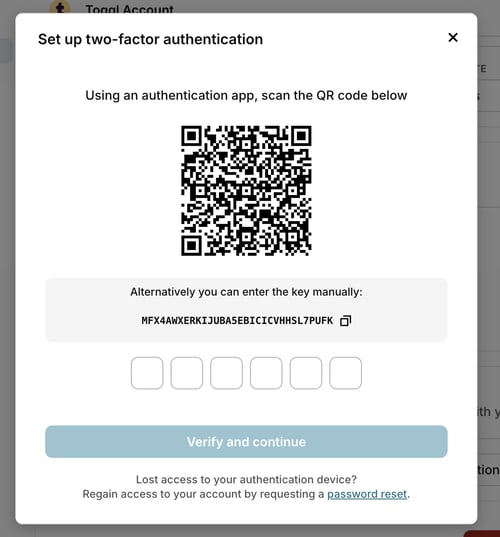
- Enter the code generated by your app and click Verify code and continue.
- A confirmation message will appear once 2FA is active on your account.
Supported authenticator apps and password managers
Any TOTP-compatible app will work. Some popular options:
- 1Password
- Bitwarden Authenticator
- Keeper
- NordPass
- LastPass
- Google Authenticator
Tip: Some password managers label this feature as "TOTP" (time-based one-time passcode) — that's the standard we use, so you're in the right place.
Turning off 2FA
- Go to Settings & Preferences
- Scroll to the 2FA section under Password actions.
- Toggle Disable 2FA sign-in to off.
[You'll be asked to enter your current 2FA code to confirm the change.
Frequently asked questions
I've lost access to my 2FA device — what do I do?
You can regain access by resetting your password. Visit the password reset page and follow the steps (see our detailed password reset guide for help). Once your password is successfully reset, 2FA will be automatically disabled. You can then set it up again with a new authenticator app or device.
I'm not being asked for a 2FA code when I log in.
This is expected behaviour if your account uses Google sign-on, Apple sign-on, SSO, or Passkeys. Two-factor authentication is only triggered when you sign in with an email address and password. If you log in via one of those other methods, the 2FA step will be skipped even if it's enabled on your account.