
What are project-level custom fields?
Project-level custom fields let admins attach structured business metadata to projects in Toggl 2.0: things like billing codes, cost centers, department, region, project type, or a Salesforce Account ID. Once a field is defined, every project in the workspace can carry a value for it, and that value can be used to filter and group projects across reports, dashboards, and project lists.
Use custom fields when you need consistent, queryable categorization on projects, instead of encoding information in project names or maintaining a parallel spreadsheet.
⚡Project-level custom fields are available on the Premium and Enterprise plans.
Who can use custom fields?
- Admins create and manage the custom field definitions for the workspace, including the list of options inside Select and Multi-select fields.
- Project managers (and anyone else with edit access to a project) can fill in and update custom field values on the projects they manage.
- Anyone who can view a project can see the field values on the Project page and use them to filter or group.
Field types
When creating a field, admins choose one of the following types:
| Type | What it stores | Example |
|---|---|---|
| Select | One value from a predefined list of options | Vertical: Consumer, Enterprise, Blockchain |
| Multi-select | One or more values from a predefined list | Systems used by client |
| Text | Free-form text | Salesforce Account ID, billing code |
| Number | Whole numbers | Numeric ID, cost factor |
| Date | A single date | Engagement start date, close date |
| Checkbox | A true / false toggle | Billable project, Strategic account |
| Members | A reference to a workspace member | Engagement Lead |
Setting up custom fields (admins)
- Open Settings in Toggl 2.0.
- Go to Custom fields in the left sidebar.
- Click New field.
- Give the field a name, choose a type, and (for Select / Multi-select) add the list of options.
- Save. The field is immediately available on every project in the workspace.
Editing or deleting a field: open the field from the list to rename it, add or rename options, or delete it. Deleting a field removes its values from every project; this cannot be undone!
Field limit. A workspace can define up to 50 project-level custom fields. This limit is deliberate: beyond ~50, project creation becomes noisy and reporting harder to navigate.
Filling in values on a project
- Open the project from the Projects list.
- Custom fields appear on the Project page, alongside name, client, and tags.
- Click into a field and choose or enter a value.
- Changes save automatically.
Fields without a value are simply blank; nothing is required by default.
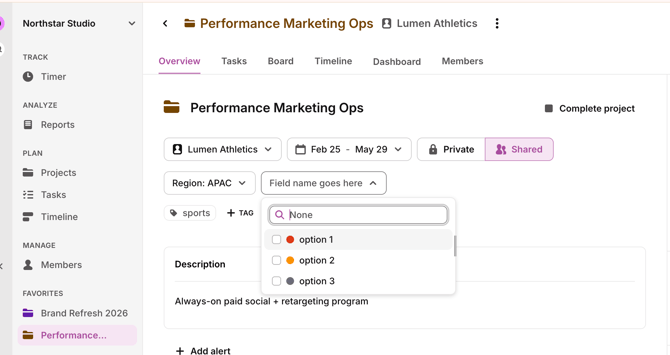
Project-level custom field values are available everywhere a project is shown:
- Project list: filter or group by any custom field to focus on a subset of projects (e.g. all projects where Vertical = Enterprise).
- Reports: add custom fields as filters and as grouping dimensions to slice utilization, time, or revenue by business metadata.
- Dashboards: the same filter and group-by set is available on dashboards, so portfolio-level views can be built around your taxonomy.
Tips for designing a good field set
- Pick fields you will actually report on. If you would not group or filter by it, it probably does not belong as a field.
- Prefer Select over Text when there is a finite list of values. Selects keep the data clean and make filtering reliable.
- One field, one purpose. Splitting "Department - Region" into two fields is almost always better than encoding both in one Text value.
- Coordinate option lists. If two fields share the same list of values (e.g. Region), consider whether one field is enough.
FAQ
Can different teams have different field sets?
Not in the first release. Custom fields are defined at the workspace level and apply to every project. Per-team or per-client field sets are being considered for a later release.
Is there a limit on the number of fields?
Yes. A workspace can define up to 40 project-level custom fields. The limit is intentional and balances flexibility against keeping project creation and reporting manageable.
What happens to my data if I delete a field?
All values for that field are removed from every project. There is no recovery, so prefer renaming or repurposing a field over deleting it.
Can I bulk-edit custom field values across many projects?
Bulk editing of projects already supports the standard project attributes; see Bulk Editing Projects and Tasks in Toggl. Bulk-editing custom field values is on the roadmap for the next iteration.
Will my labels be replaced by custom fields?
No. Labels remain available and are best used for ad-hoc, user-applied tagging. Custom fields are for admin-defined, structured metadata that you want to report on. The two can be used together.