
What are Fixed Fees?
Fixed fees allow you to define the budget a client is expected to pay for a project. This is especially useful when projects aren’t billed purely on an hourly basis — instead, a set amount is agreed upon upfront with the client.
Fixed fees give you a clear way to track whether your team’s logged time and billable rates are staying within the agreed client budget, helping you monitor project profitability at a glance.
Why Use Fixed Fees?
Toggl supports two common project payment structures:
- Hourly/billable rate projects — time is tracked and billed based on logged hours
- Budget-based projects — the client pays a fixed, pre-agreed amount
For budget-based projects, fixed fees let you:
- Communicate client budget expectations clearly within the project
- Compare the fixed fee against billable calculations (based on logged time and billable rates) side by side in reports
- Monitor project profitability and catch budget overruns early
How to Set Up a Fixed Fee
There are two ways to add a fixed fee to a project:
Option 1: During Project Creation
- Click Add Project to open the project creation modal
- Locate the Fixed Fee field within the modal
- Enter the agreed client budget amount and any other important details
- Complete the rest of the project setup and save
Option 2: On an Existing Project
- Open the project from your project list
- Scroll to the bottom right of the project view
- Click the Fixed Fee toggle to expand it
- Enter the fixed fee amount and save
Monitoring Fixed Fees
Once a fixed fee is set, it will appear in the Project list view; see the fixed fee at a glance alongside other project details:
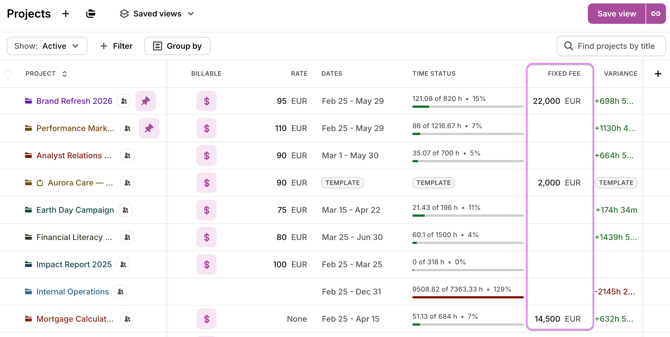
Note: Currently, the fixed fee is compared only against billable rate calculations (based on logged time). Additional comparison options may be available in future updates.