
Overview
By default, all new tasks and projects in Toggl 2.0 are creates as private. Private projects and tasks restrict visibility to specific project members and workspace admins only.
This matters for teams handling:
- Confidential initiatives
- HR matters
- NDA-protected client work
- Executive planning
Instead of spinning up separate workspaces, private projects and tasks let you:
- Protect sensitive project details from unauthorized viewers
- Keep confidential tasks visible only to assignees and admins
- Control exactly who can view and participate in specific projects
Feature Availability
Private projects and tasks are available on all paid plans.
Default States
To take the most secure approach, new projects and standalone tasks are set as private by default. Access is restricted until someone explicitly makes it public.
Tasks assigned to a project always inherit the project’s privacy setting. Subtasks always inherit from their parent task.
| Item | Default State |
|---|---|
| New project | Private |
| New task (no project) | Private |
| New task (with project) | Inherits from project |
| Subtask | Inherits from parent task |
Workspace Roles and Permissions
Workspace Roles
| Role | Description |
|---|---|
| Organization Admin | Can see and manage all private projects, even those they are not members of. They are effectively treated as super-users for private project content. |
| Tool Admin and Manager | Can see and interact with the project and its tasks according to their project role. |
| Project manager | All users who create a private project are automatically treated as project managers. Can manage project members, change project settings. Every private project must have at least one project manager. |
| Project Member | Can see and interact with the project and its tasks according to their project role. |
| Guest | Limited access. |
Non-members cannot see private project details. Tasks belonging to private projects appear in shared views (such as the timeline) in a masked state – the task name, client, and other sensitive fields are hidden and replaced with a lock icon and the label “Private.” Only the date range and estimate duration remain visible.
| Element | What Non-Members See |
|---|---|
| Task name | Hidden – replaced with a lock icon and the word “Private” |
| Client name | Hidden (nulled) |
| Project name | Hidden |
| Assignees | Hidden |
| Date range | Visible |
| Estimate duration | Visible |
How to Set Up a Private Project
Creating a New Private Project
- Click on +Project to open the project modal
- In the Privacy section, a segmented control offers two options:
- Private – “Only visible to project members”
- Public – “Visible to everyone in the workspace”
- Private is selected by default.
- Add users or teams who should have access.
- The Project User role is assigned by default.
- Save the project.
Changing an Existing Project’s Privacy
Privacy can be changed after creation from the Project Modal:
- Open the Project page
- Under the Overview tab, edit the privacy setting
- A confirmation dialog appears, you need to confirm or cancel the change
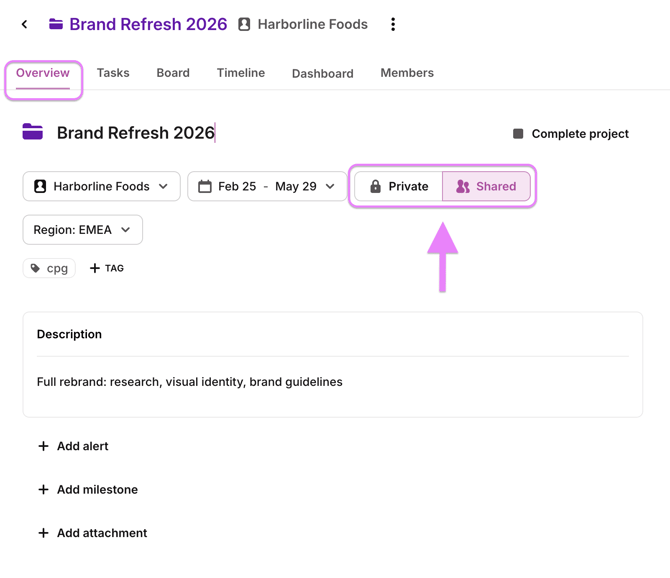
Important: Making a project shared permanently removes admin member assignments from that project. If you later switch it back to private, you will need to manually re-add those admins.
How to Set Up a Private Task
Creating a New Private Task
- Open the task creator form.
- In the task toolbar, an icon indicates the current privacy state.
- Click the icon to open a menu with two options:
- Private
- Shared
- When the feature is enabled, Private is selected by default for standalone tasks.
- If the task is assigned to a project, the privacy toggle is disabled and the task inherits the project’s privacy.
Changing a Task’s Privacy
Standalone tasks (no project):
- Use the person/group icon menu in the task toolbar to toggle between Private and Shared.
Tasks assigned to a project:
- The privacy setting is locked and inherited from the project. To change it, change the project’s privacy, move the task to a different project or remove the project from the task altogether.
Managing Members on Private Projects
Adding Members
Add members and teams from the Project Share Modal. Members can also be invited by email. New members are assigned the Project User role by default.
Removing Members
Removing a member from a private project triggers a confirmation dialog (except for workspace admins, who skip confirmation). Removing a guest user from any project also triggers confirmation.
If removing the only Project Manager, a prompt requires you to assign a new manager first. Every private project must have at least one project manager.
Changing Member Roles
Members can be promoted to Project Manager or demoted to Project User within the share modal. Changing a workspace admin to a non-admin role is flagged as a downgrade.
Private tasks and capacity
On the Timeline, capacity is still calculated based on task estimates, including private tasks.
Import Considerations
When importing data into Toggl 2.0, note that private projects are imported as shared projects. After import, you will need to manually set the desired projects to private and configure their members.