
Overview
Once connected, your Jira projects appear as Toggl projects, issues become tasks, and labels become tags — all kept in sync automatically.
When something changes in Jira (like a new issue being created), it shows up in Toggl 2.0 near-instantly. This means your team can plan and track work in Toggl Focus without manually recreating their Jira data.
The integration is set up by a workspace admin and includes an optional step to import Jira users so that issue assignments carry over into Toggl.
The sync is one-way: from Jira to Toggl 2.0. Changes made in Toggl 2.0 are not pushed back to Jira.
Feature Availability
Available on Premium plans only.
How It Maps
| Jira | Toggl 2.0 |
|---|---|
| Project | Project |
| Issue | Task |
| Label | Tag |
| Assignee | Task assignee (requires user import) |
Each imported project and task includes a link back to the original item in Jira.
Setup
How to Connect Jira
- In the Admin Console, go to Integrations and connect Jira
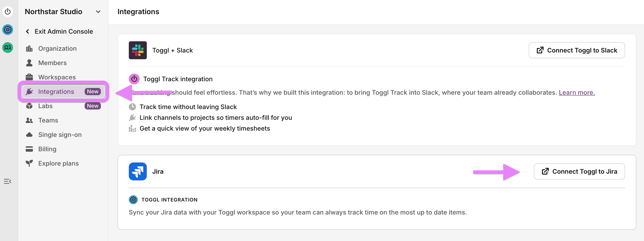
- Authorize Toggl in Atlassian by selecting your workspace and accepting
.png?width=670&height=377&name=Bildschirmfoto%202026-03-12%20um%2014.56.15%20(1).png)
- You are redirected back to Toggl
How to Import Users from Jira
After connecting, Toggl prompts you to import members. This step is optional but recommended — without it, task assignments will not sync.
- Follow the link to your Jira user directory and export your users as a CSV
- You’ll receive an email from Atlassian with the CSV download
- Back in Toggl, upload the CSV — Toggl identifies the users and their email addresses
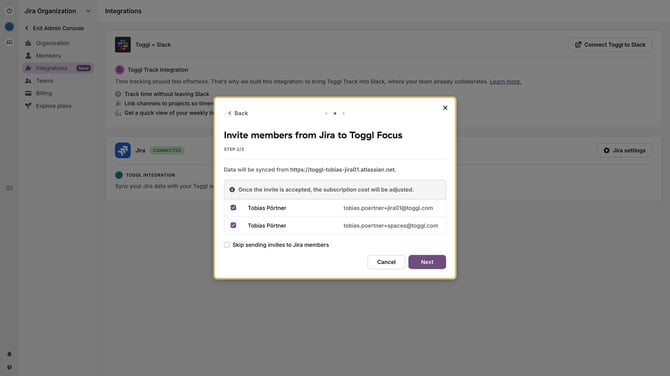
- Select the users you want to import and continue
Important: If you skip the user import, projects and tasks will still sync, but they will not be assigned to users in Toggl.
How to Start the Sync
- Review the mapping overview showing what will be imported
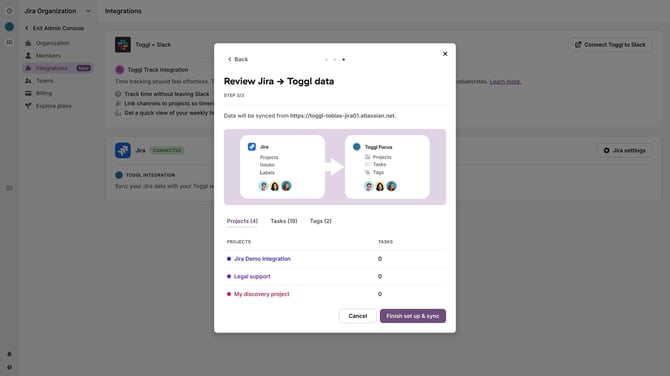
- Confirm and start the sync
- Check the sync log to verify everything imported correctly
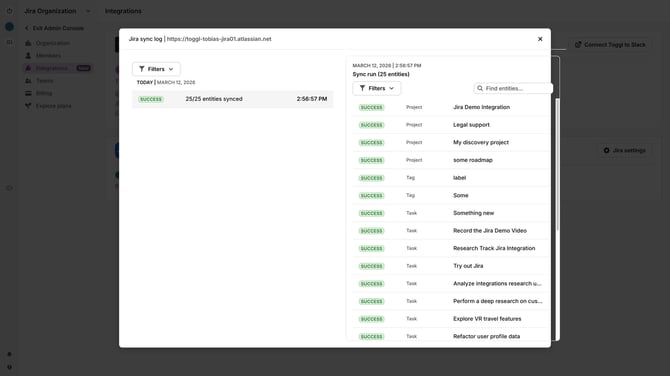
Once complete, your projects, tasks, and tags appear in Toggl 2.0.
Ongoing Sync
After the initial import, new issues created in Jira sync to Toggl 2.0 automatically and near-instantly, including project assignment. Remember that the sync is one-way — only changes in Jira are reflected in Toggl 2.0, not the other way around.
Tracking Time on Jira Issues
The Toggl browser extension lets you track time directly from Jira without leaving your current workflow. When the Jira integration is set up, the extension automatically fills in the correct project, task title (including the Jira task identifier), and any synced tags — so you don’t have to think about metadata.
There are three ways to log time from Jira:
- Presets — Click a preset (e.g. 30 minutes) to open an overlay pre-filled with the start and end time for that duration. The project, task title, and tags are assigned automatically.
- Play button — Start a live timer on any Jira issue. When you stop and open the extension, the time entry already has the correct project and task assigned.
- Drag — Drag to select a custom duration (e.g. 3 hours). This opens the same overlay as presets, pre-filled with the selected time range and all metadata auto-assigned.
All time tracked through the extension is synced to Toggl 2.0 with the correct metadata — no manual entry required.
Edge Cases & Considerations
- User import is required for assignment sync. If users are not imported, tasks sync without assignees.
- One-way sync only. Data flows from Jira to Toggl 2.0. Creating or editing tasks in Toggl Focus does not update Jira.