
Exporting data
Toggl Track offers various options for exporting data, depending on what you want to export. Learn more about these options, as well as how long it may take for an export to be sent to you in this guide.
Note: This guide covers Toggl Track. Toggl 2.0 (Focus) is a separate product with its own export options and its own API (documentation at https://engineering.toggl.com/docs/focus/). Focus API tokens (toggl_sk_...) will return HTTP 403 against the Track API (api.track.toggl.com) — use the Focus endpoints instead. CSV export is available on the Free plan in Toggl 2.0, whereas on Toggl Track the Free plan only supports PDF exports (CSV/other formats require a paid plan).
- Exporting time entries
- Exporting user data, including timeline information.
- Exporting workspace data
- Exporting user data, including timeline information.
- Exporting workspace data
- How long does it take to export my data?
Exporting time entries
If you’d like to export Time Entries, please do so on the Detailed Report page. We recommend you download the export as a CSV which is explained within our support article on Detailed Reports.
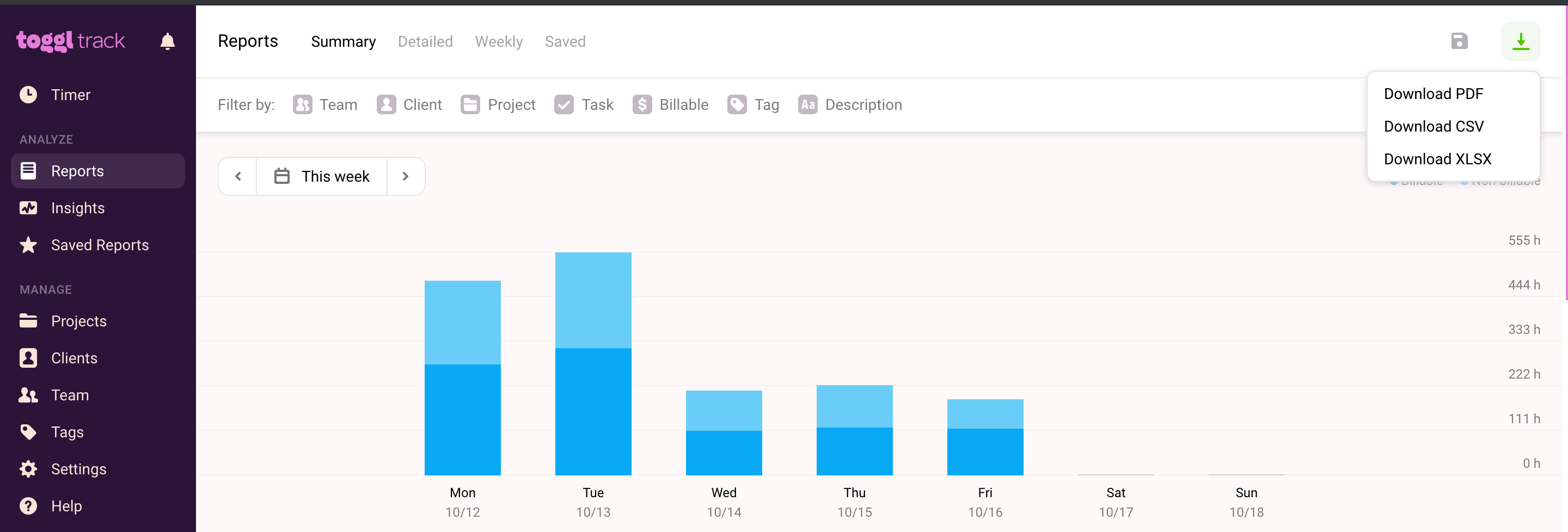
Important Notes:
- The data you can export will depend on your current active Workspace. If you work on more than one Workspace, make sure to switch to the correct one first.
- You can only export the time entries you have access to. This means regular users can only export their own time entries or entries for projects they are project managers for. Admins can export all time entries.
- You can choose from different Duration formats on the Profile page.
- Certain export formats are only available on Paid plans.
Exporting user and timeline data
Any user can export their Profile Data, with the option to include their Timeline information through our web app at track.toggl.com.
To export Profile Data or Timeline data, visit the Profile settings page. Click on the Export Account Data button in the upper-right corner.
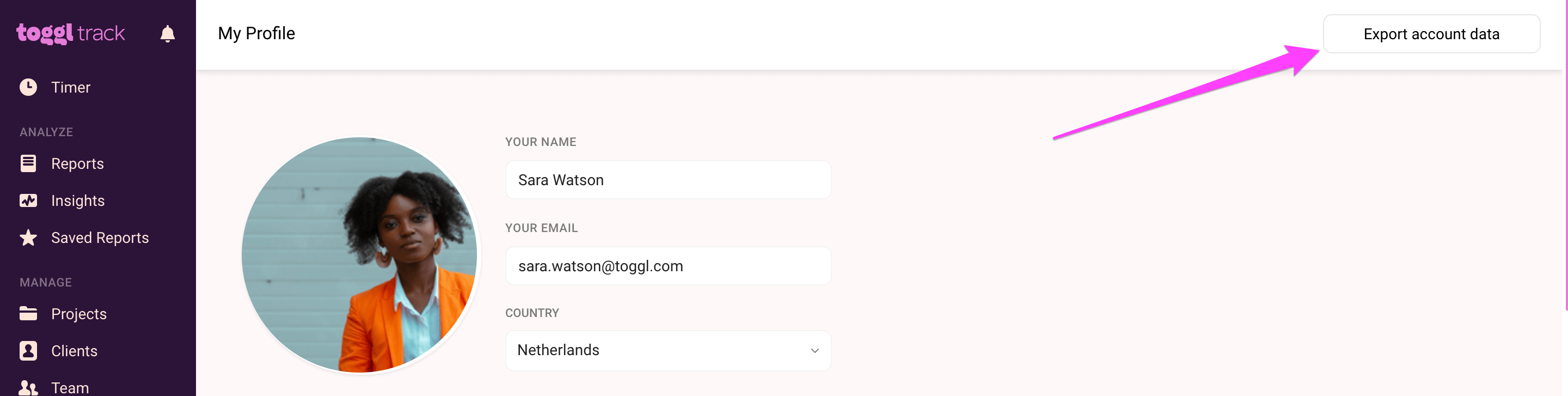
Check the items you want to export, then click on the "Compile file and send to email" button below.
Important notes:
- The Timeline feature only stores data for the last 90 days, by exporting this data, you will receive the full 90 days of Timeline data.
- Timeline data is only saved if you use the Timeline feature and have "sync local activity" enabled in the desktop app. If it isn't enabled, the activity data is only visible locally in the desktop app and cannot be exported.
- Timeline start and ends times are shown in UNIX Epoch time. You will need to convert these numbers to see standard date and time formats.
- You have to be logged in to the Toggl Track web app in order to access the ZIP file shared via email.
Converting Timeline JSON to a readable format:
Timeline data is exported as raw JSON with start/end times in UNIX Epoch (UTC) time. To make it readable:
- Convert the JSON file to CSV using any online JSON-to-CSV converter.
- Open the CSV in Excel and create new columns to convert the timestamps:
- End Time column:
=(B2/86400)+DATE(1970,1,1)(replace B2 with the End Time UNIX cell), then format the cell as "Date and Time". - Start Time column:
=(E2/86400)+DATE(1970,1,1)(replace E2 with the Start Time UNIX cell), then format the cell as "Date and Time". - Duration column:
=G2-H2(where G2 is the new End Time cell and H2 is the new Start Time cell), then format the cell as "Duration".
Exporting workspace data
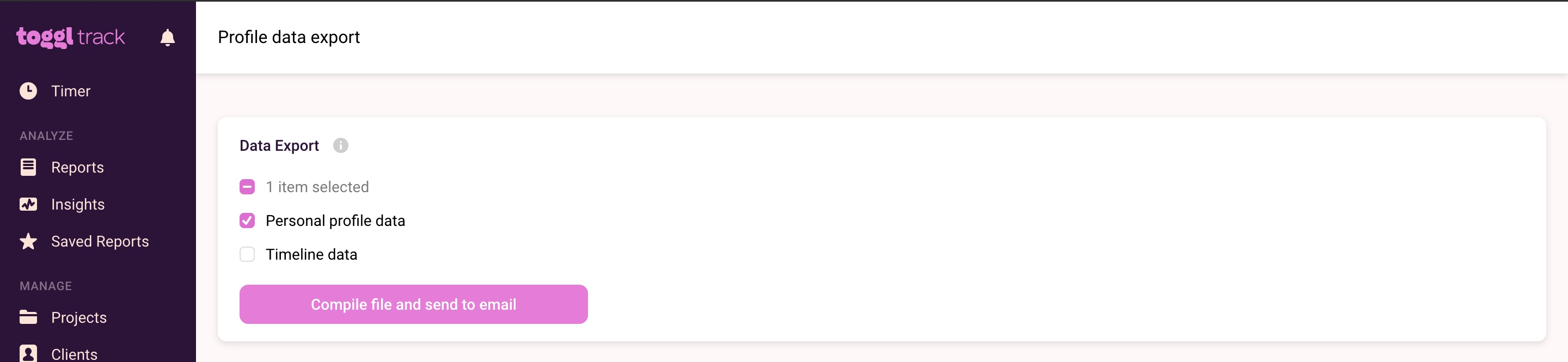
Workspace data can be exported by workspace Admins on the Data Export page under Settings.
Timeline data is exported as raw JSON with start/end times in UNIX Epoch (UTC) time. To make it readable:
- Convert the JSON file to CSV using any online JSON-to-CSV converter.
- Open the CSV in Excel and create new columns to convert the timestamps:
- End Time column:
=(B2/86400)+DATE(1970,1,1)(replace B2 with the End Time UNIX cell), then format the cell as "Date and Time". - Start Time column:
=(E2/86400)+DATE(1970,1,1)(replace E2 with the Start Time UNIX cell), then format the cell as "Date and Time". - Duration column:
=G2-H2(where G2 is the new End Time cell and H2 is the new Start Time cell), then format the cell as "Duration". - Only one export can be compiled at a time per Workspace. Another one cannot be initiated until the one being generated is finished.
- Invoices will be exported as PDF. All other data is in .json format.
- Workspace data (projects, clients, etc.) is exported as raw JSON, which can be converted to a readable CSV using any JSON-to-CSV tool.
- A JSON export cannot be re-uploaded to a new workspace. To transfer projects and clients to another workspace, export a Detailed Report as CSV, delete all columns except Project and Client, then import it via the import page. Filter the report by "active" on both projects and clients to only export active items.
How long does it take to export my data?
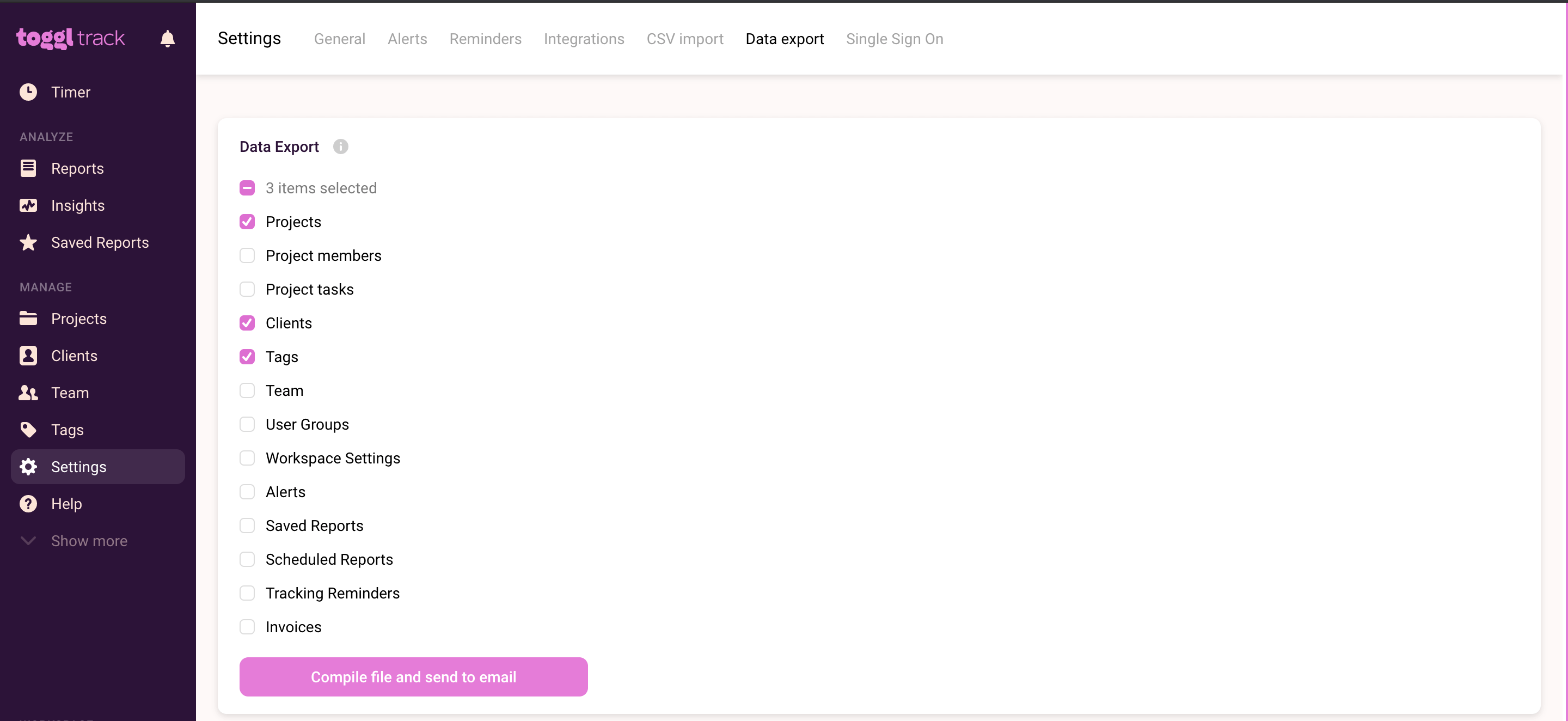
Once you've chosen the data you need to be exported, click "Compile file and send to my email". The link can be accessed while logged into Toggl Track and is valid for 72 hours.
Important Notes:
- Only one export can be compiled at a time per Workspace. Another one cannot be initiated until the one being generated is finished.
- Invoices will be exported as PDF. All other data is in .json format.
- Workspace data (projects, clients, etc.) is exported as raw JSON, which can be converted to a readable CSV using any JSON-to-CSV tool.
- A JSON export cannot be re-uploaded to a new workspace. To transfer projects and clients to another workspace, export a Detailed Report as CSV, delete all columns except Project and Client, then import it via the import page. Filter the report by "active" on both projects and clients to only export active items.
How long does it take to export my data?
It depends on how much data you’re trying to export. In most cases, exporting Time Entries from the Detailed Report page generates a download within a few seconds.
Compiling Personal Profile Data exports should take a few minutes at most. A download link will appear in your email inbox soon after.
Workspace settings can take a while, depending on the amount of data you are exporting.
Need more help or have ideas to share? Join our Community to connect with our team and other users — ask questions, share feedback, and help shape what comes next!
Updated on: 07/24/2026
Thank you!