
How are time entries assigned to the correct workspace?
All time entries in Track need to be assigned to a workspace. Each
workspace works as a silo, with time tracked to it being visible only to its admins and project managers, so it is important to track time to the correct workspace to allow your managers to report on it.
For users with just one workspace, there is no way to track time to an incorrect workspace. Users who are members of multiple workspaces can easily also track time on the correct workspace. This guide addresses how to make sure you are tracking time in the correct workspace in our webapp, desktop apps and browser extension.
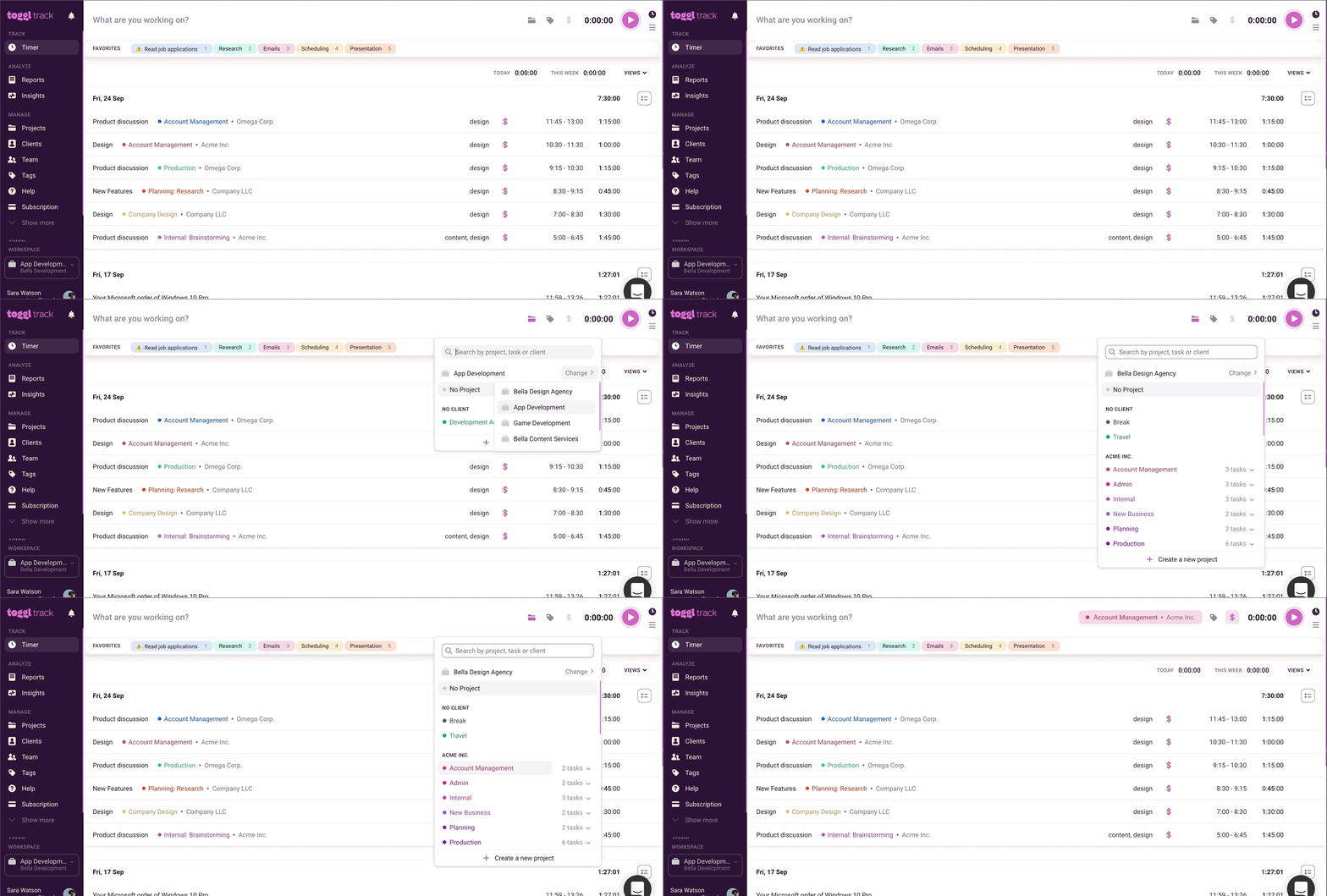
Choosing the correct workspace in the webapp
Projects are grouped by Workspace in the Project dropdown. By choosing the correct project in the correct workspace, you will be tracking time where it needs to go.
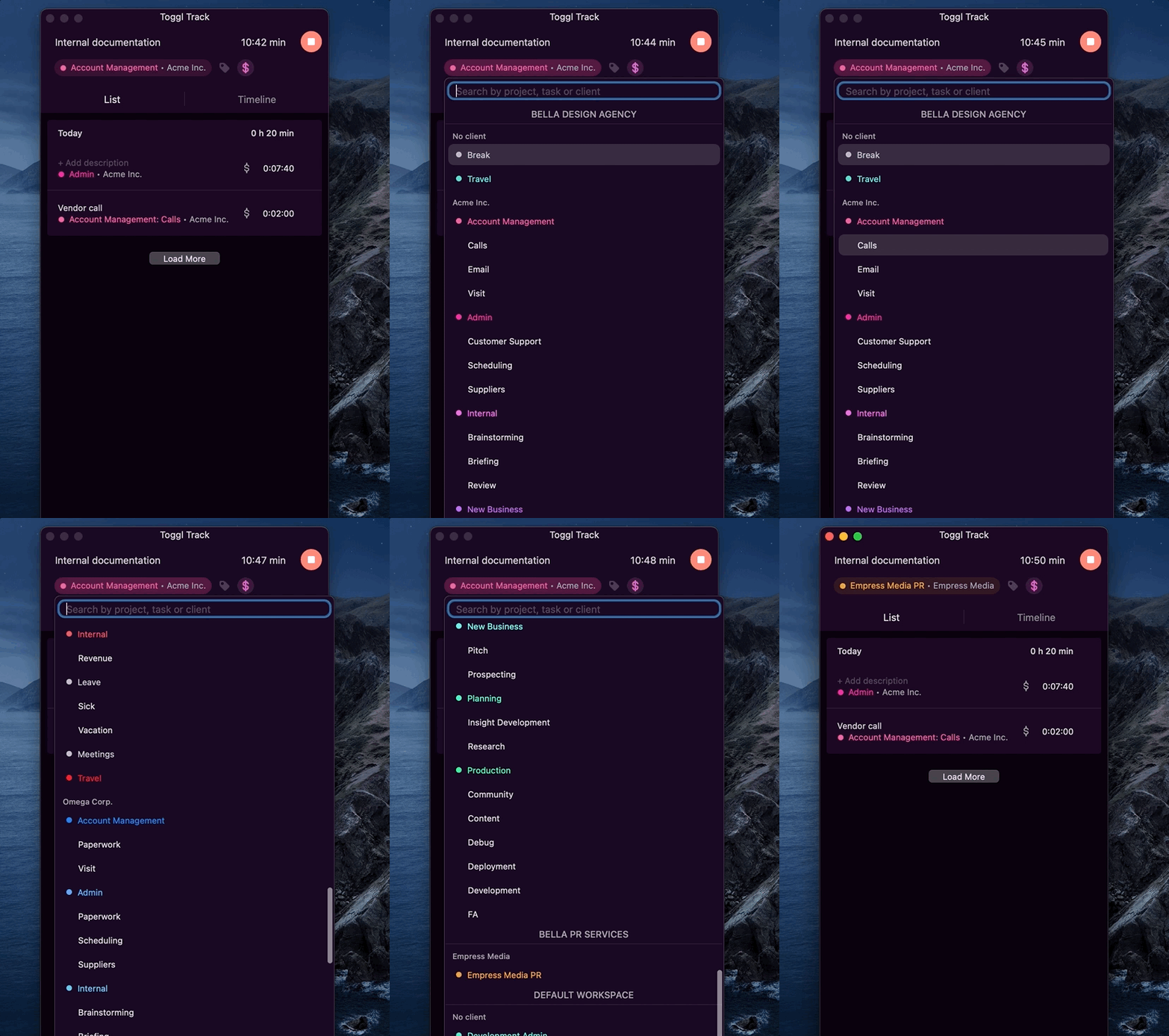
Choosing the correct workspace in the desktop apps
Projects in the Project dropdown are grouped by workspace. Selecting a project assigns the time entry to the workspace that owns that project.
In the macOS app, the workspace selector at the top of the window sets the default workspace for new time entries without a project. It does not filter the time entries displayed in List view.
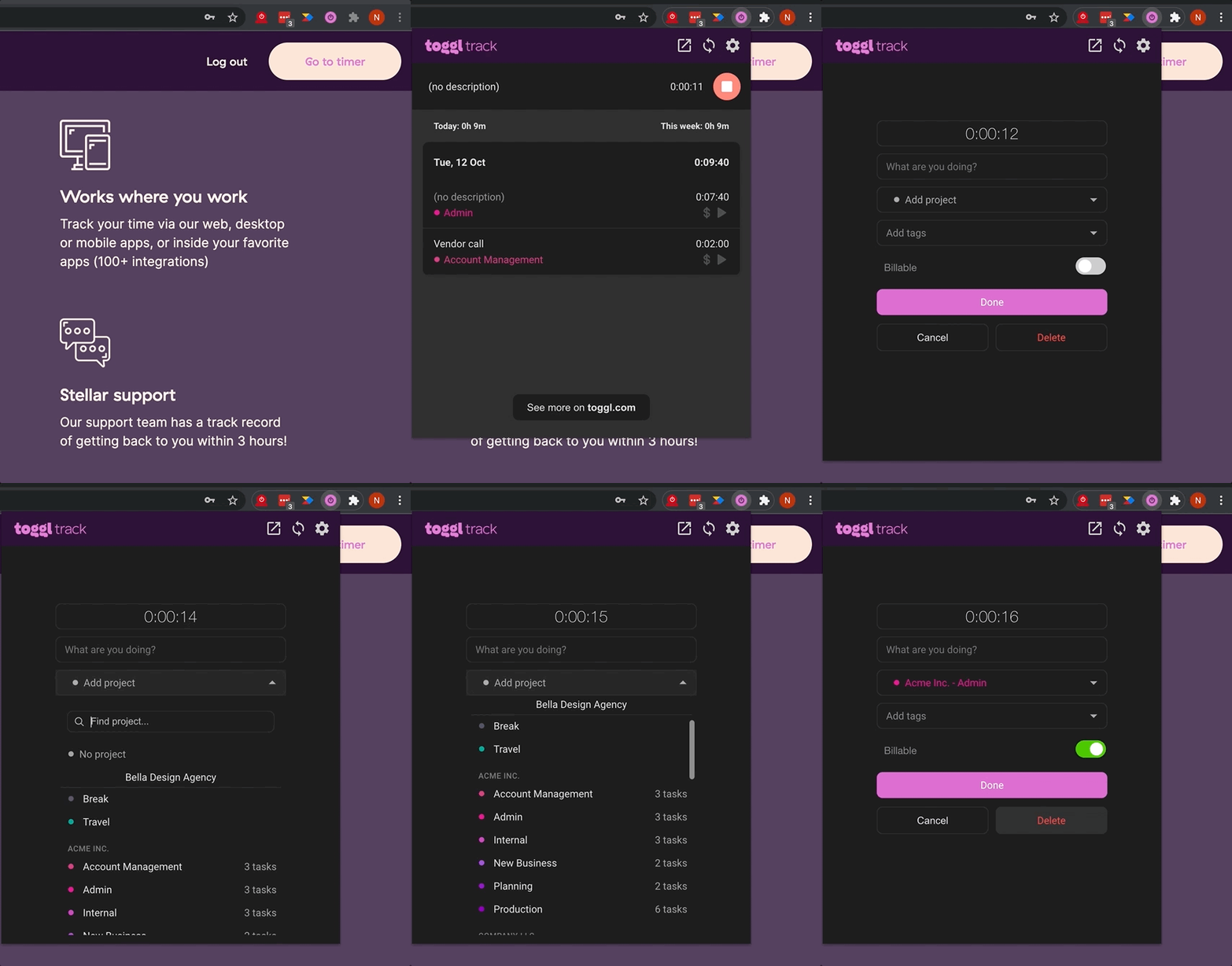
Choosing the correct workspace in the browser extension
Use the Project dropdown to select the workspace each time entry is assigned to in the browser extension. Similar to the mobile and desktop apps, the Project dropdown is grouped by workspace.
Notes:
- Currently the mobile apps do not visually display which workspace each project belongs to but this will be addressed in a future release.
- By default, time entries without a project are assigned to your default workspace. You can change the default workspace in the web app, under Settings in the iOS app, or with the workspace selector at the top of the macOS app.
Updated on: 09/29/2026
Thank you!